# Scheduled Tasks
Screenshots on this page are taken from the Chinese UI. Menu, field and button names in the text use the English UI labels.
Scheduled tasks define tasks or logic that the system needs to run on a schedule, such as sending contract expiry notifications or archiving data periodically.
# Target Audience
This document is intended for developers and implementers of the system.
# Task Types
The system supports the following two types of scheduled tasks:
| Type | Dropdown label | Description |
|---|---|---|
CRON_TASK | Cron Task | Runs periodically according to a Cron expression, for example periodic data backups, expiry reminders, statistics and monitoring |
SCHEDULE_TASK | Schedule Task(One Time) | Runs once at the specified time (scheduleDate) |
Since 1.0, the "Run at Startup" type has been removed (put logic that needs to run at startup in the plugin's onLoad() callback; see Plugin Development · Lifecycle Callbacks).
One-time tasks cannot be created in the UI
In the current version, the create and edit forms have no "schedule date (scheduleDate)" field, so saving a SCHEDULE_TASK created in the UI fails with Schedule date is required for SCHEDULE_TASK type. If you need a one-time task, set scheduleDate through CSV seed data or the data API.
# Defining a Task
Click "Create" under Development > Schedules:
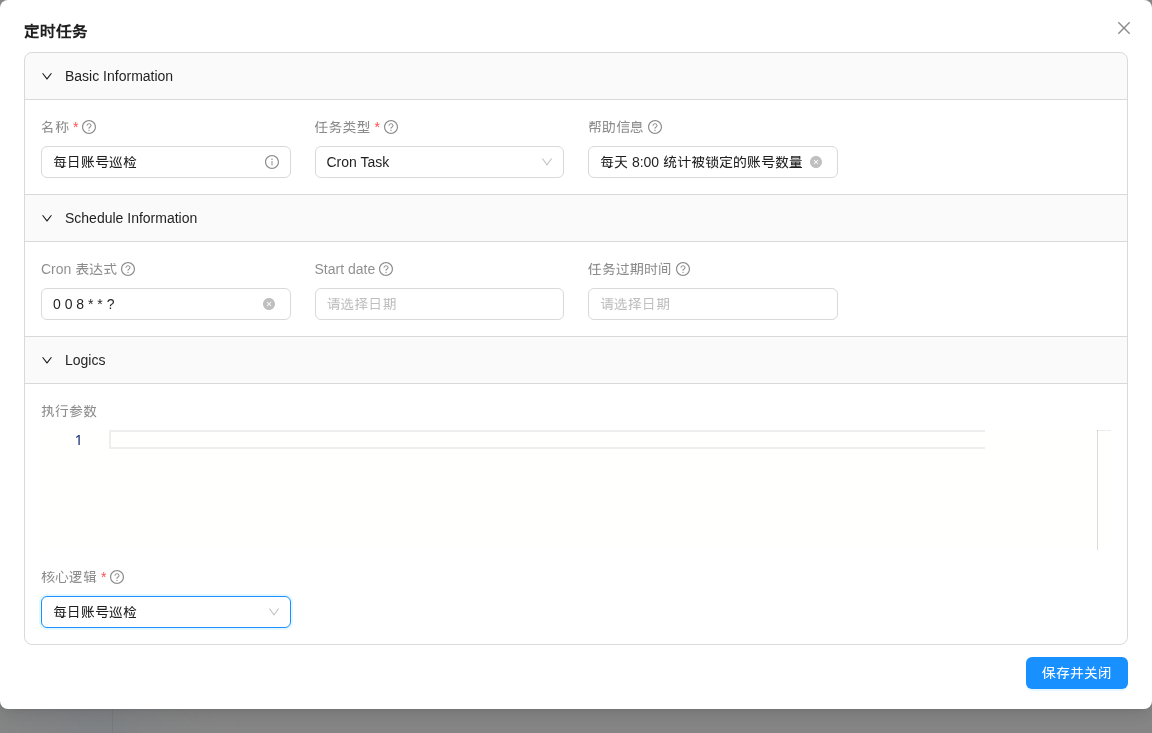
| Field | Description |
|---|---|
| Name (name) | Required, unique; also used as the task identifier in the scheduler. The name can be changed, but this is not recommended; see the note below |
| Type (dynamicTaskType) | Cron Task or Schedule Task(One Time) |
| Help text (helpText) | Description |
| Cron expression (cronExpression) | Required for CRON_TASK; see below for the format |
| Start date (startDate) | Optional; a CRON_TASK only starts firing from this time |
| Expiry date (expiryDate) | Optional; a CRON_TASK no longer fires after this time |
| Parameters (parameters) | Optional; custom parameters in JSON format |
| Core logic (coreLogic) | Required; a dynamic logic of type DYNAMIC_TASK_CORE_LOGIC |
| Active (active) | Shown only in the edit form. When turned off, the task no longer runs at its scheduled times |
Example header of the CSV seed data:
name(*),helpText,coreLogic.name,active,isSystem,startDate,expiryDate,cronExpression,parameters,dynamicTaskType,scheduleDate
Do not change the task name
The scheduler identifies tasks by name. After a name is changed, the platform re-registers the schedule under the new name, but the schedule under the old name is not removed; when the old schedule fires and cannot find a task with that name, it only writes a warning to the backend log and does not run anything. If you need to rename a task, it is recommended to delete it and create it again under the new name.
# Cron Expressions
Scheduled tasks use Quartz (opens new window) Cron expressions, which include a "seconds" field and have 6 or 7 parts: second minute hour day-of-month month day-of-week [year]. One of the "day-of-month" and "day-of-week" parts must be ?. For example:
| Expression | Meaning |
|---|---|
0 0 8 * * ? | Every day at 8:00 |
0 */10 * * * ? | Every 10 minutes |
0 30 2 ? * MON | Every Monday at 2:30 |
# Scheduling Mechanism
- The platform schedules tasks with Quartz in cluster mode, and the scheduling information is stored in the database (table prefix
QRTZ_). When multiple backend instances run at the same time, each firing is executed on only one instance. - After a task is created, modified or deleted, the platform automatically synchronizes it to the scheduler through built-in object hooks (
DynamicTask: after creation,DynamicTask: after updating,DynamicTask: after deletion), with no restart required. - While a plugin is being imported, a
CRON_TASKthat becomes due skips this firing and waits for the next one; aSCHEDULE_TASKis delayed by 5 seconds before running.
Since 1.0, scheduled tasks no longer support enable logic (if you need to skip a run conditionally, check the condition in the core logic and return directly).
# Core Logic
The core logic is the code executed when the scheduled task runs.
# Injected Variables
| Variable name | Variable type | Description |
|---|---|---|
triggerDatetime | java.time.OffsetDateTime | The scheduled time of this firing |
task | tech.muyan.task.DynamicTask | The current task; custom parameters can be read through task.parameters (a JSON string) |
log | Closure | Prints execution logs; the content is saved to the execution record |
application | grails.core.GrailsApplication | The current Grails application context |
Example: count locked accounts
import tech.muyan.security.User

long lockedCount = User.countByAccountLocked(true)
log("触发时间:${triggerDatetime}")
return [execResult: "账号巡检完成,当前锁定账号 ${lockedCount} 个"]
2
3
4
5
# Return Value
The return value is a Map. The structure of the value returned after a scheduled task runs is as follows:
return [
  //Execution result, of type text
  execResult: 'OK, Result'
]2
3
How the execution status is determined:
- Normal return:
SUCCESS;execResultis saved as the execution result. - Any exception thrown (including
CustomLogicWarningException):FAILED; the stack trace is written to "Stacktrace". The execution result is not the original exception message but text wrapped by the platform:Failed to run task[<task id>/(<task name>)]: <exception message>, followed on the next line byPlesae refer to stackTrace column for detail(sic). Scheduled tasks have no "success with warning" status.
# Running a Task Manually
In the list under Development > Schedules, expand the dropdown menu at the end of a task's row and click "Run Task Manually". The confirmation dialog has the title Run Task Manually and the message "Run this schedule task manually? schedule time parameter will be set to when the task been called". Click "OK" and the task runs once immediately. This operation requires the current user to have the DEVELOPER role.
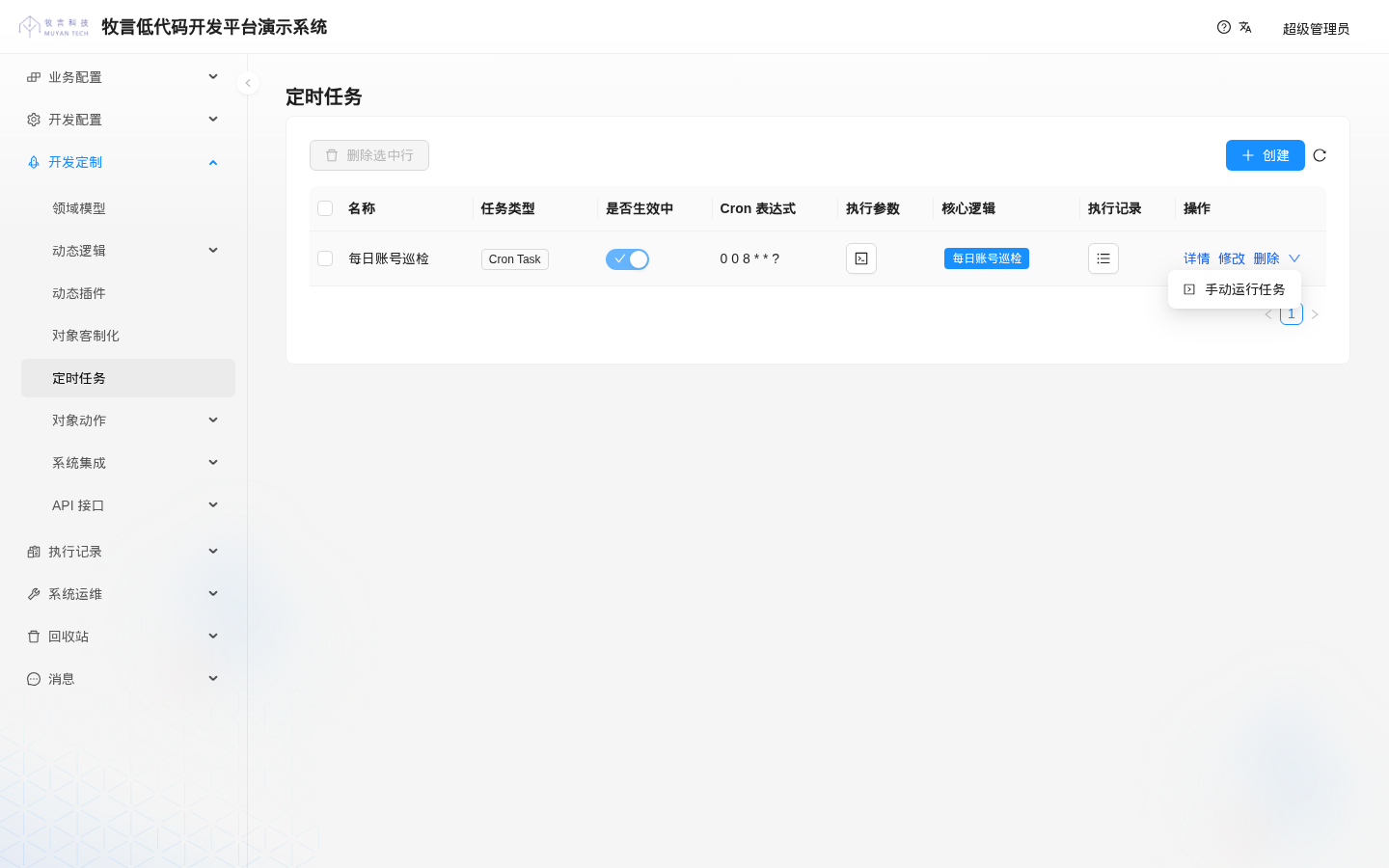
When a task is run manually, triggerDatetime is the time the run was clicked, not the firing time of a particular schedule.
# Execution Records
Each execution writes a DynamicTaskExecRecord, which can be viewed under Exec History > Task, including the related task, status, trigger method, schedule time, start and finish times, execution parameters, execution log, execution result, stack trace and so on. To show the record in full, the screenshot below collapses the left menu and hides the three columns Execute parameters, Execute log and Stacktrace:
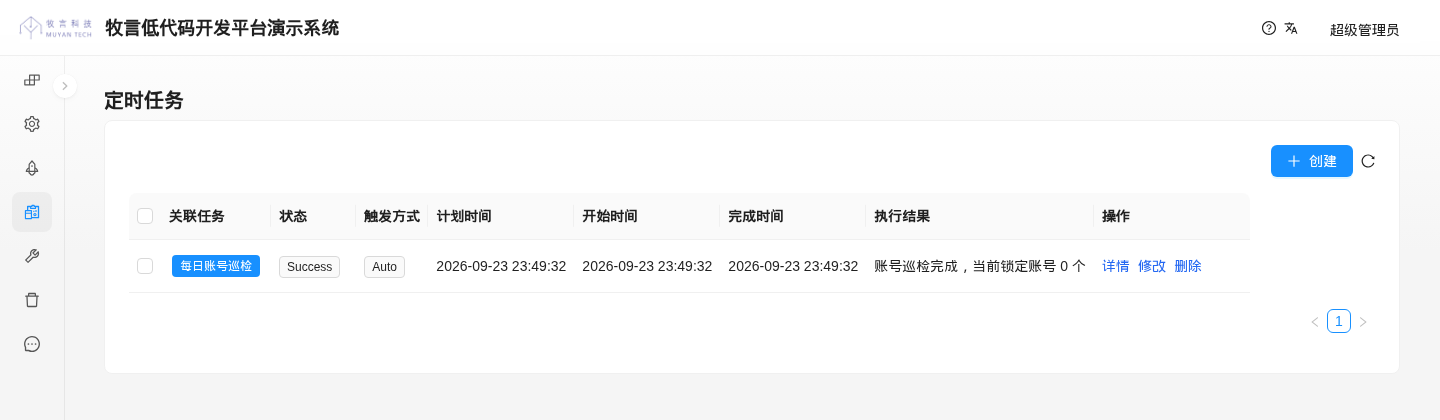
The "Trigger method" (triggerMethod) of an execution record has three values: AUTO (fired on schedule), MANUAL (run manually) and RERUN (re-run after the scheduler recovers from a failure).
WARNING
In the current version, the execution records produced by running a task manually also show AUTO as the trigger method (the screenshot above is the record of a manual run).